
How to Translate YouTube Videos for Free (2026 Guide)

Watching or sharing a YouTube video in a language you don't speak doesn't have to mean staring at broken auto-captions. Some people just want to follow along with a foreign-language upload right now. Others want to take their own content — a tutorial, an interview, a product video — and make it available to viewers in another language. These are two very different jobs, and they call for two very different tools.
This guide covers both routes: the free, built-in way to translate a YouTube video for quick viewing, and a more complete way to translate a YouTube video into a downloadable, editable, and optionally dubbed file you can actually publish or share. By the end, you'll know which method fits what you're trying to do — and exactly how to do it.
Why People Translate YouTube Videos
There are a few common reasons someone looks up how to translate a YouTube video:
-
Viewers watching content in a language they don't speak, who just want to understand what's being said.
-
Creators who made a video in one language and want to reach viewers in another, without re-recording anything.
-
Businesses and agencies localizing training material, product demos, or marketing videos for a new market.
-
Students and researchers translating lecture recordings, interviews, or panel discussions for study or reference.
Each of these needs a slightly different outcome. A viewer just needs readable captions. A creator or business usually needs a file — translated subtitles, translated audio, or both — that can be downloaded, edited, and reused. That distinction is exactly what separates the two methods below.
Method 1: YouTube's Built-In Translation
YouTube has a native caption translation feature built directly into the player, and it's completely free. If you only need to translate a YouTube video for your own viewing, this is the fastest way to do it.
How to use it:
-
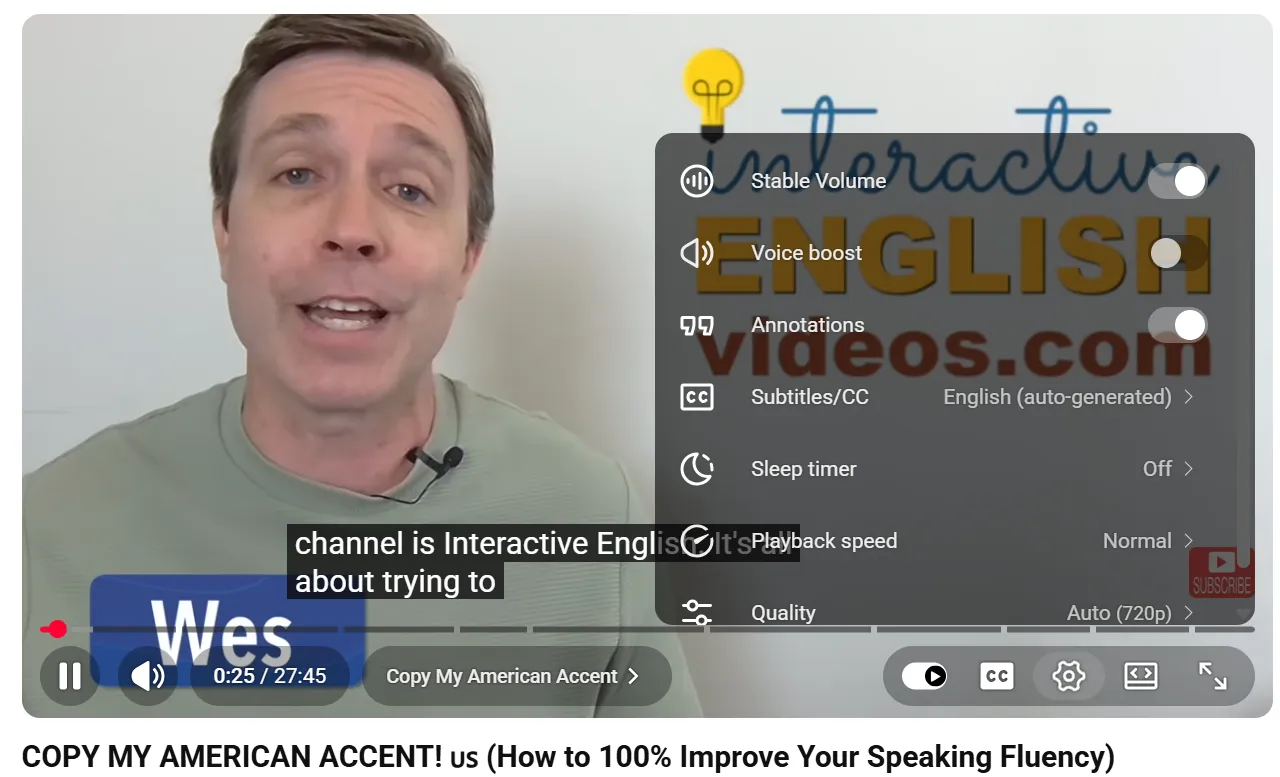
Open the video and click the CC (captions) icon in the player controls.
-
Click the Settings (gear) icon, then select Subtitles/CC.
-
Choose Auto-translate, then pick your target language from the list.
The captions will now display in your selected language, translated automatically as the video plays.
Where this method falls short
Translating a YouTube video this way works in seconds and costs nothing, but it comes with real limitations worth knowing before you rely on it:
-
Text only. You get translated captions, not translated audio. There's no dubbing, no voiceover — just on-screen text.
-
Accuracy drops on harder content. Auto-translated captions tend to struggle with technical vocabulary, fast speech, regional slang, and especially conversations with more than one speaker, like interviews or podcasts, where the system can lose track of who's talking.
-
It's not portable. The translation only exists inside the YouTube player. If you want to download the video, repost it to another platform, or hand a translated version to a client, this method doesn't produce a usable file.
-
It depends on captions existing in the first place. This method only works on videos where captions — uploaded or auto-generated — are already available. Some videos have nothing to translate from.
If you just want to follow along with a video right now, this is the right call. If you need an actual translated output — editable subtitles, or a version with translated audio — you'll need the second method.
Method 2: Translate and Dub a YouTube Video with AI
For anything beyond casual viewing — repurposing a video for a different market, translating an interview for a client, or turning your own content into another language — a YouTube video translator gets you a real, downloadable result instead of captions trapped inside a player.
Here's the full process using YouTube Video Translator:
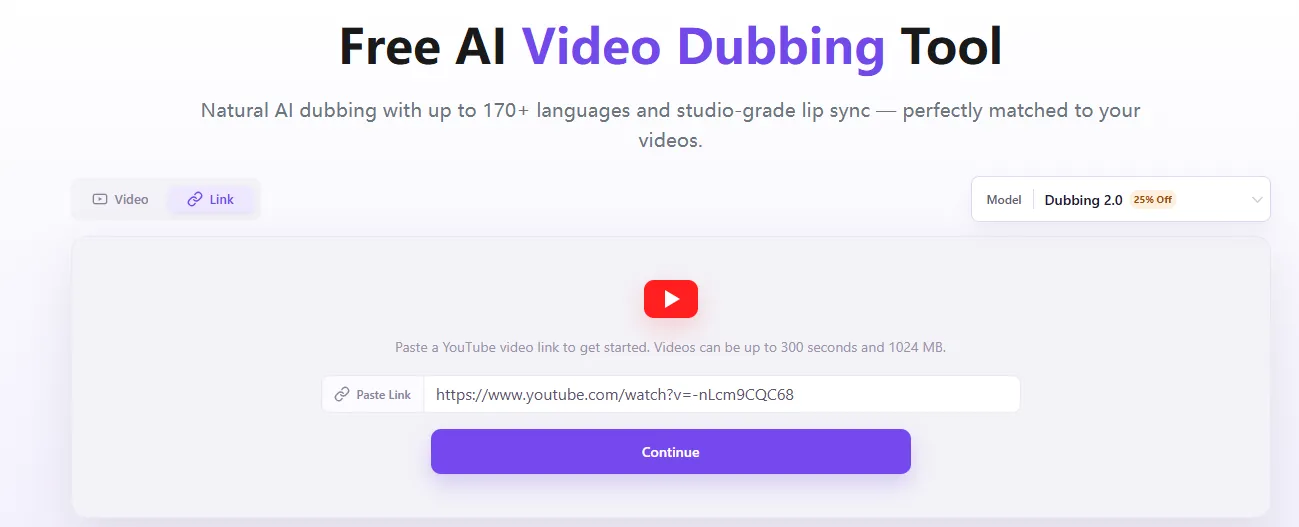
Paste the YouTube link.
There's no need to download the video first. Just drop the URL into the tool and it pulls the video directly.
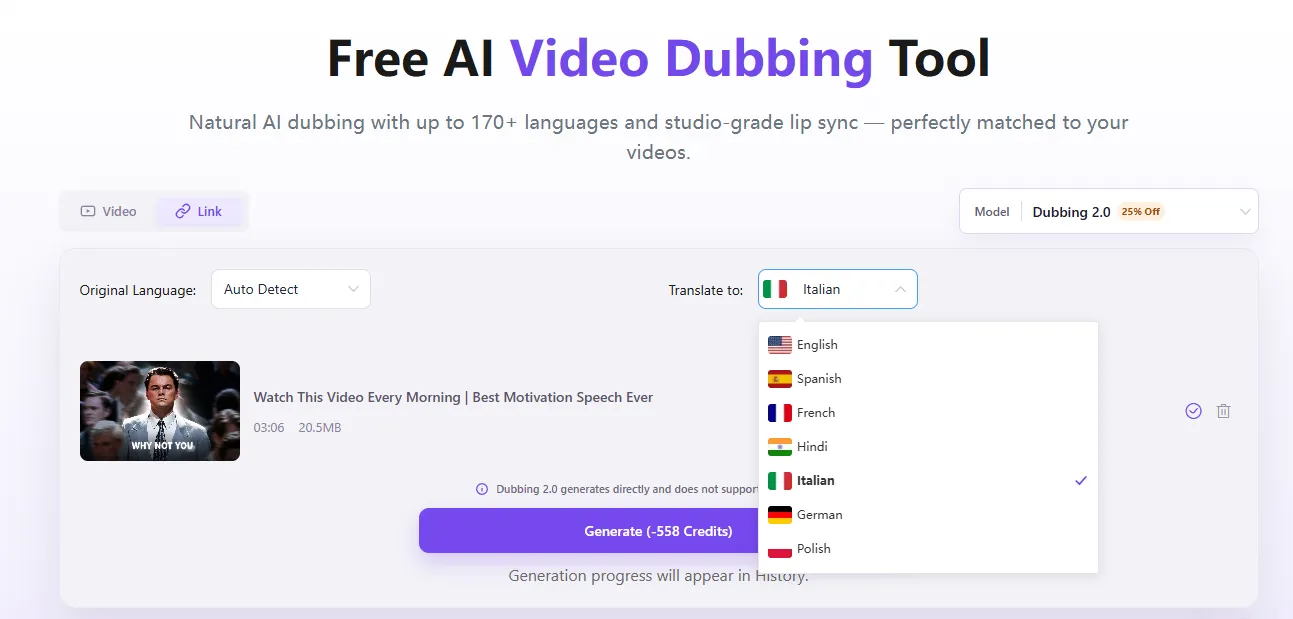
Select your target language.
Free users can translate into 30 core languages; subscribers unlock the full library of 170+ languages.
Review and edit the translated subtitles.
Subtitles are translated first, before anything else happens, so you can read through the translation and adjust wording or timing before moving on to the next step.
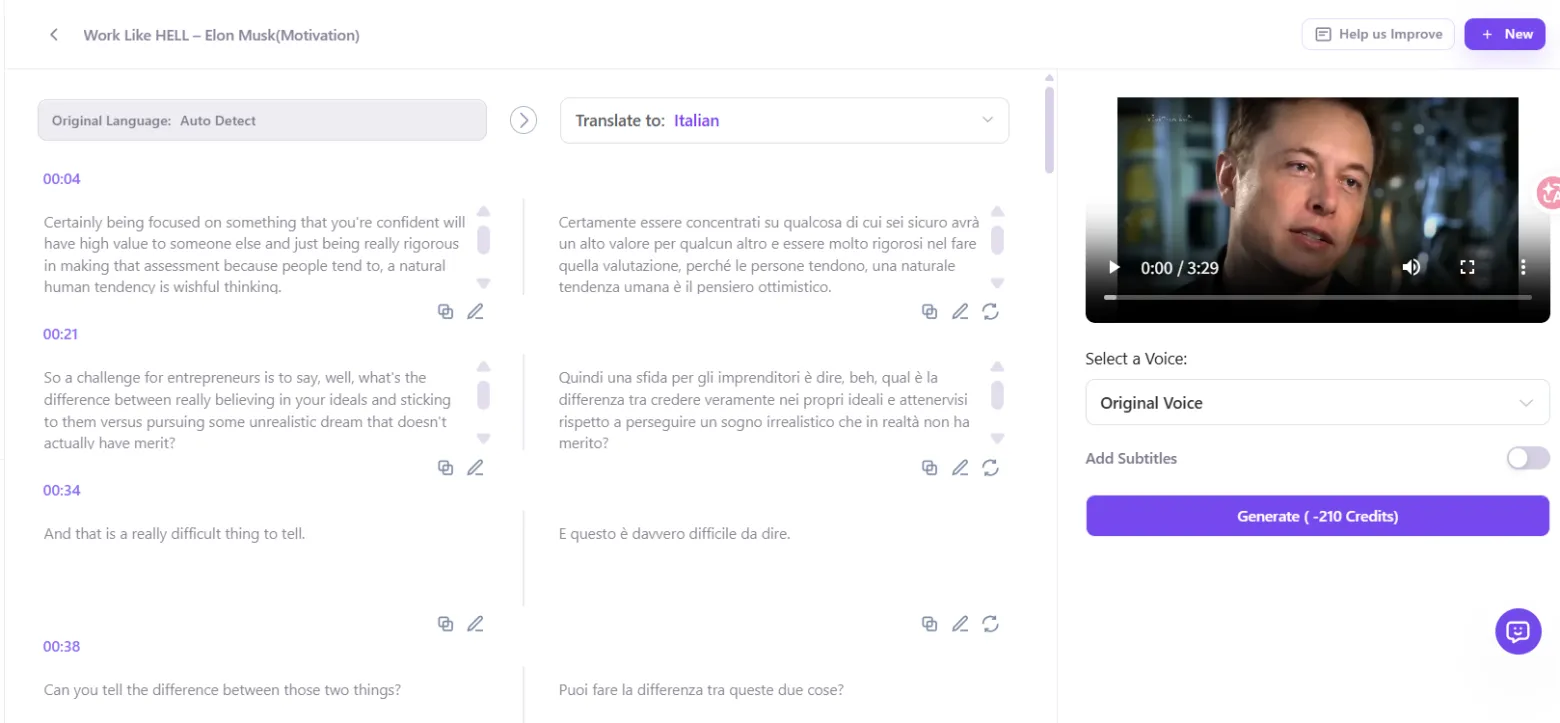
Turn on AI dubbing (optional).
If you want a voiced translation rather than just subtitles, enable dubbing as an add-on step. This generates translated audio to go along with — or replace — the original.
Toggle subtitles on or off
In the final video, depending on whether you want a subtitled version, a dubbed version, or both together.
Generate and download.
Once processing is done, you'll get the translated video, the audio track, and the subtitle file as three separate downloads — so you can use whichever piece fits your workflow.
Daily free credits let you test translation quality before committing to a paid plan, and commercial use requires a paid subscription.
Which Method Should You Use?
| YouTube's Built-In Translation | Youtube Video Translator | |
|---|---|---|
| Cost | Free | Free daily credits, paid plans for more |
| Output | On-screen captions only | Downloadable video, audio, and subtitle files |
| Dubbing (voiced translation) | Not available | Optional add-on |
| Editable before export | No | Yes |
| Works on videos without existing captions | Limited | Yes — works from the link directly |
| Best for | Quickly following along with a video | Publishing, sharing, or repurposing translated content |
If your goal is just to understand a video right now, YouTube's own translation covers it. If your goal is to translate a YouTube video into something you can publish, download, or send to someone else, the AI route is the one built for that.
Common Use Cases for Translating YouTube Videos
Translating a YouTube video isn't just one use case — it covers a range of very different situations:
-
Tutorials and how-to videos. Creators translating instructional content so viewers in other regions can follow along without a language barrier.
-
Interviews and podcasts. Multi-speaker conversations where accurate translation and clear speaker separation matter more than in single-narrator content.
-
Marketing and product videos. Businesses adapting an existing video for a new market instead of reshooting it from scratch.
-
Lectures and educational content. Students and researchers translating recorded talks or panel discussions for study.
Whatever the use case, the underlying need is usually the same: get the meaning right, and end up with a file you can actually use afterward — not just a translation you can only view once, inside one platform.
Tips for Better Translation Results
Whether you're using YouTube's own tool or an AI video translator, a few habits make any translation more accurate:
-
Start with clear audio. Background noise or music under dialogue makes any translation — automatic or AI — less accurate, since the system has to work harder to separate speech from everything else.
-
Avoid heavily overlapping dialogue where possible. Videos where multiple people talk over each other are harder for any transcription system to separate cleanly, which can affect both captions and dubbed audio.
-
Always review before publishing. Even accurate AI translation can miss tone, names, or context. A quick pass over the subtitles before you export saves you from surprises later, especially for content going out publicly or to a client.
-
Pick the right output for your audience. Some audiences prefer subtitles they can read at their own pace; others respond better to dubbed audio. If you're not sure, generating both and testing which performs better is worth the extra step.
Frequent Asked Questions
Is it free to translate a YouTube video?
Yes — you can start with daily free credits without a subscription. A paid plan is required for commercial use.
How many languages are supported?
30 languages are available on the free tier; subscribers get access to 170+ languages.
Do I need to download the video first?
No. This YouTube video translator works directly from the link — paste it in and the tool pulls the video, no download or file upload required.
Can I get dubbed audio, not just subtitles?
Yes. Subtitles are generated and translated first, and AI dubbing can be added as an optional step if you want translated audio as well.
What file formats do I get?
You can download the translated video, the audio track, and the subtitle file separately, so you can use whichever output fits your workflow.
Is there a length limit?
Upload duration limits depend on your plan tier — see our pricing page for current limits.
Conclusion
If you just need to understand a YouTube video right now, YouTube's own translation feature gets the job done for free. But if you're translating a video to publish, share, or send to someone else — with editable subtitles, optional dubbing, and files you can actually download — a YouTube video translator is the tool built for that. Paste a link, pick a language, and see the result for yourself.